
Did you know that Microsoft supports FIDO2 security keys in Azure Active Directory?
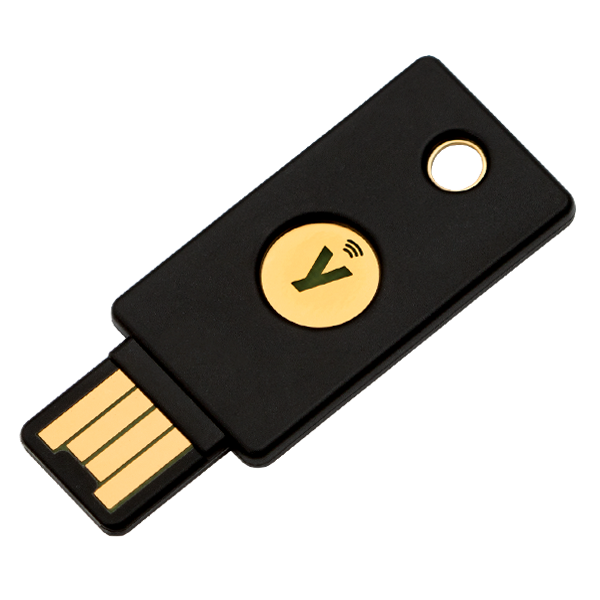
Since Windows Virtual Desktop is based on Azure Active Directory for authentication, FIDO2 security keys can also be used to secure applications and desktops hosted on Windows Virtual Desktop.
In this post, I will demonstrate how to enable FIDO2 support in the Azure Active Directory for WVD.
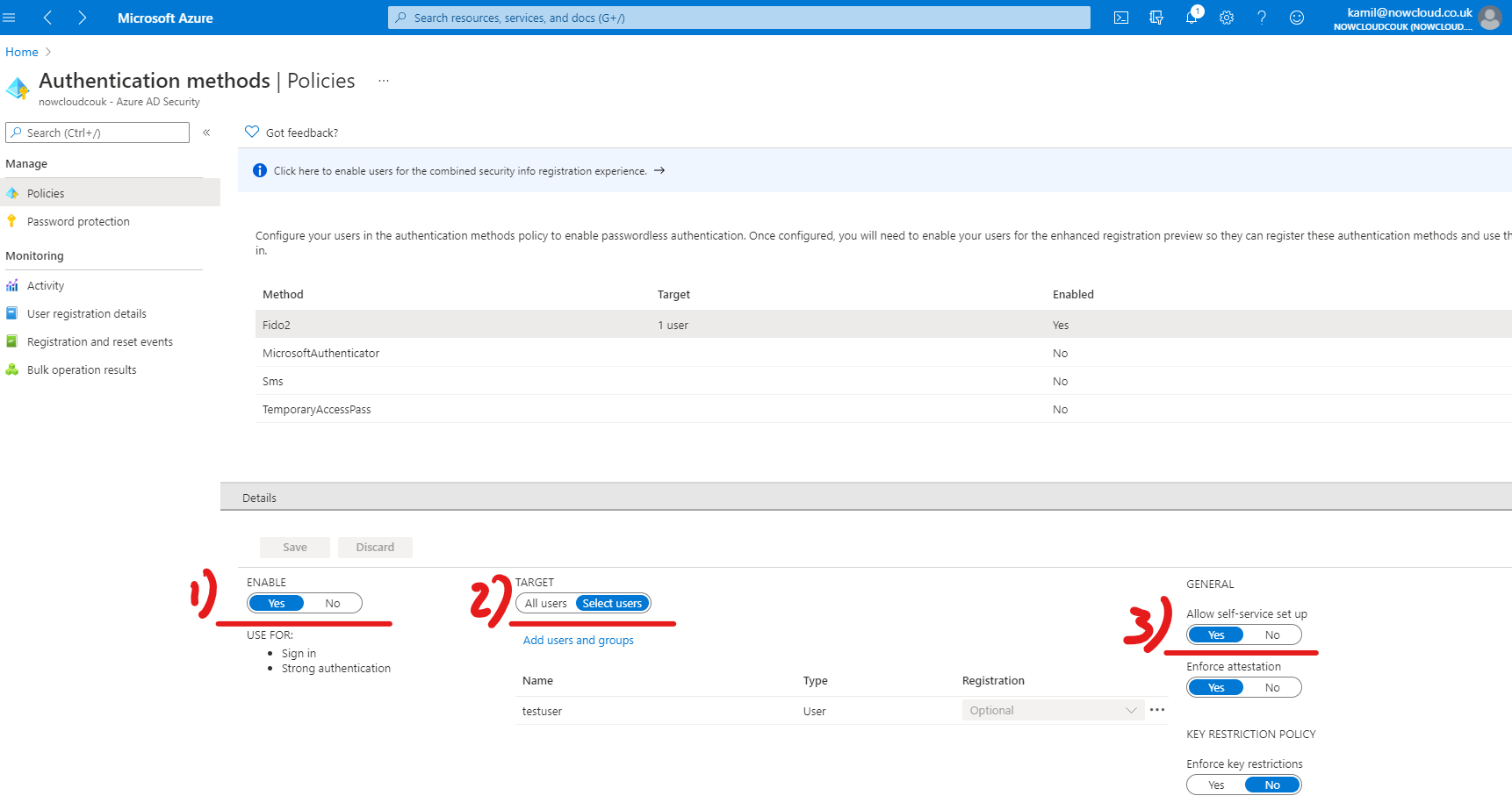
First of all, we need to enable FIDO2 support in Azure Active Directory. Login to Azure Portal and then navigate to Azure AD Authentication methods
Under Policies blade, select FIDO2. Now under 1) Enable, click on Yes, next under 2) Target select All users or specific pilot group or individual user. In my demo, I will only target one user. Now under 3) General, Allow self-service setup, this will allow users to register their security keys
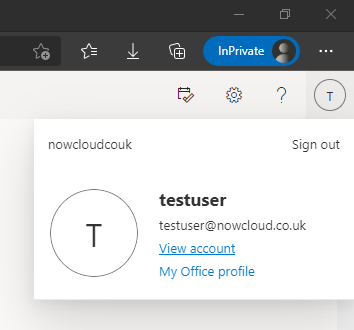
Now as the Azure part is already configured, we can log in to the Office.com portal and register our security key. Once you are logged in, click on your initials in the top right corner and select View Account
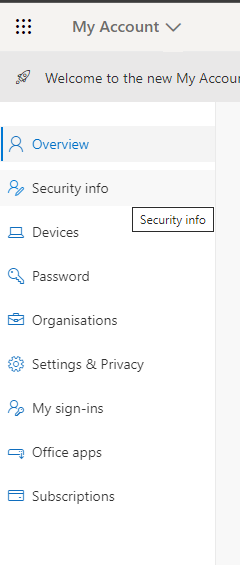
Now click on Security Info on the left-hand side, or in the middle of the screen
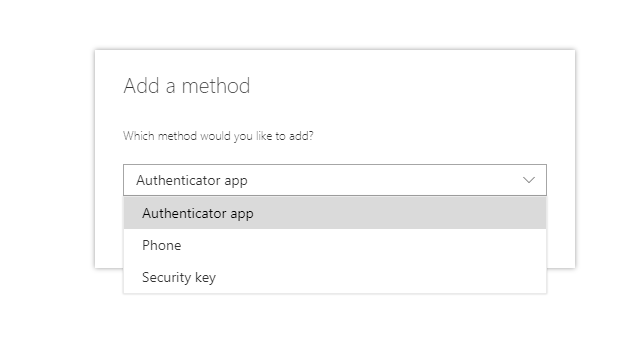
Now you should see currently allowed authentication methods. Click Add a method and choose Security Key from the drop-down menu
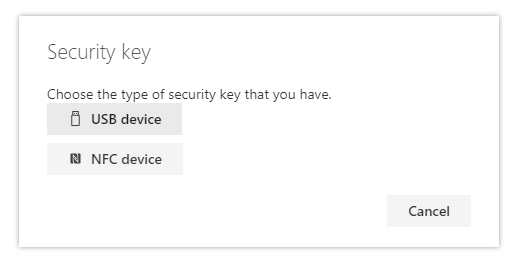
Select the correct device type you are using. For this demo I used USB Yubikey hence I selected USB Device
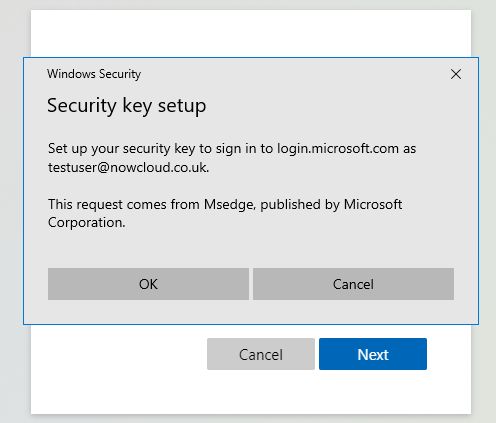
Ok, now it’s time to plug the key into the USB port and start the registration
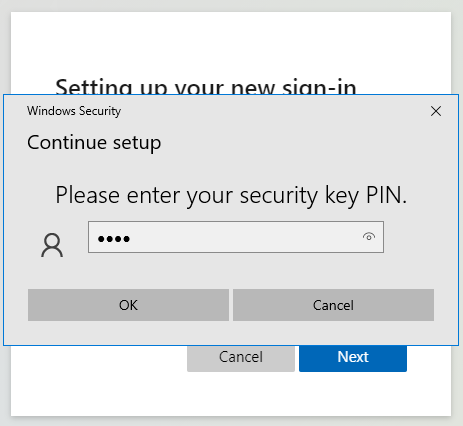
Select PIN for your key
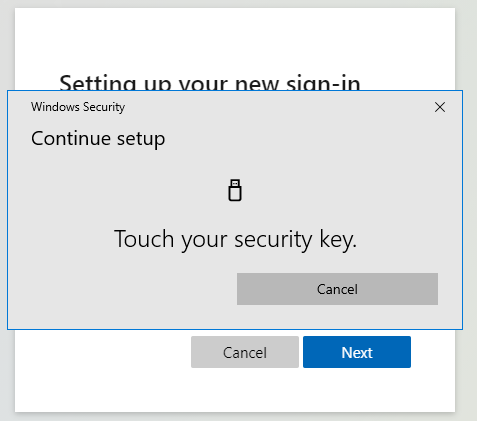
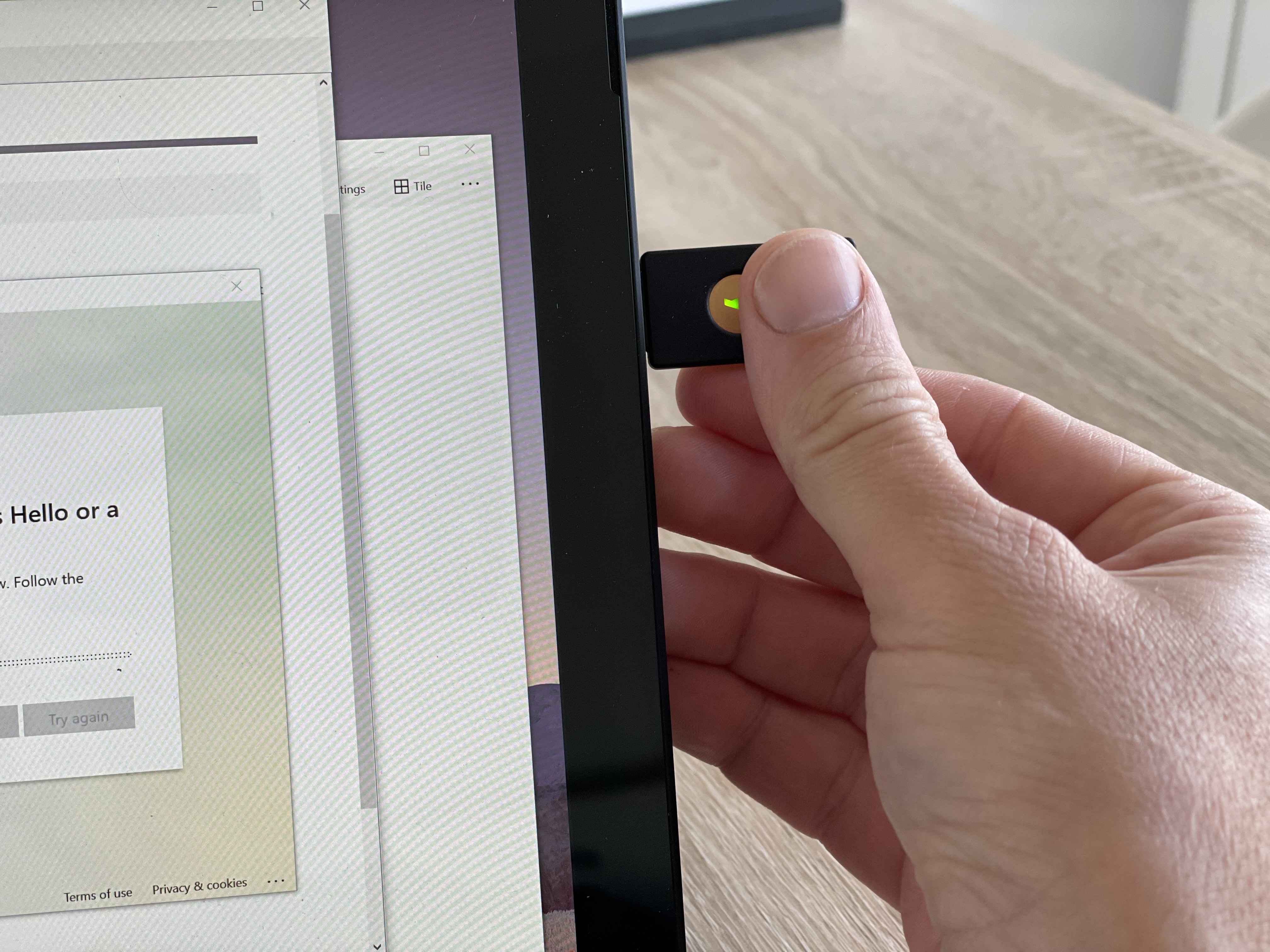
Touch your security key to finish registration
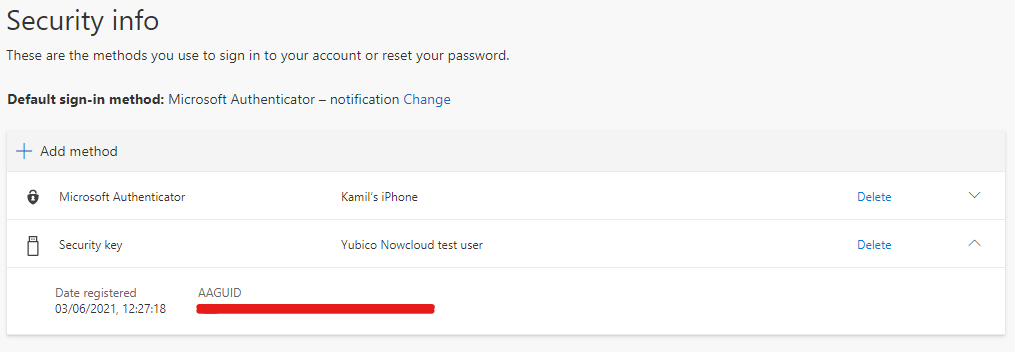
That’s the key now registered with my test account and ready to use. Let’s try it with Windows Virtual Desktop.
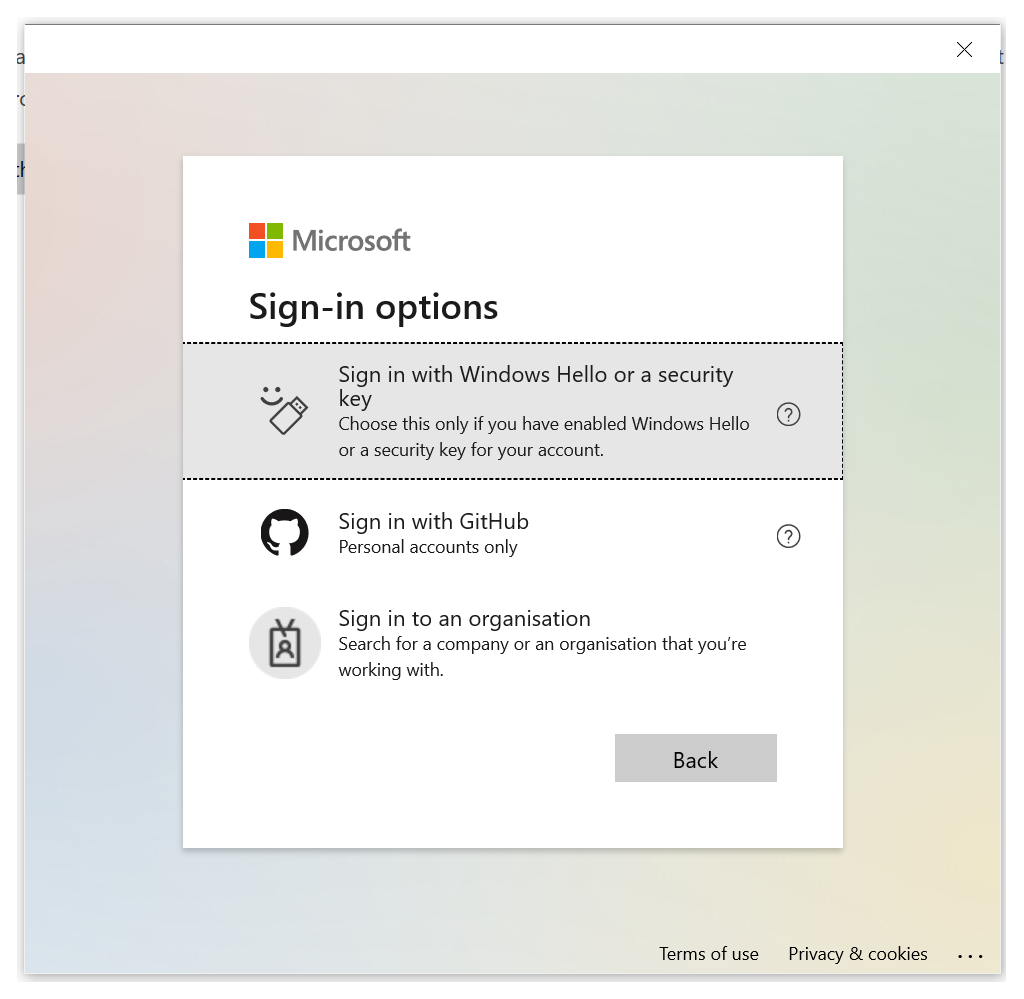
Launch Microsoft Remote Desktop client and hit subscribe. On the Microsoft signing page, click on Sign-in options. You should now see the below options, click on Sign in with Windows Hello or a security key
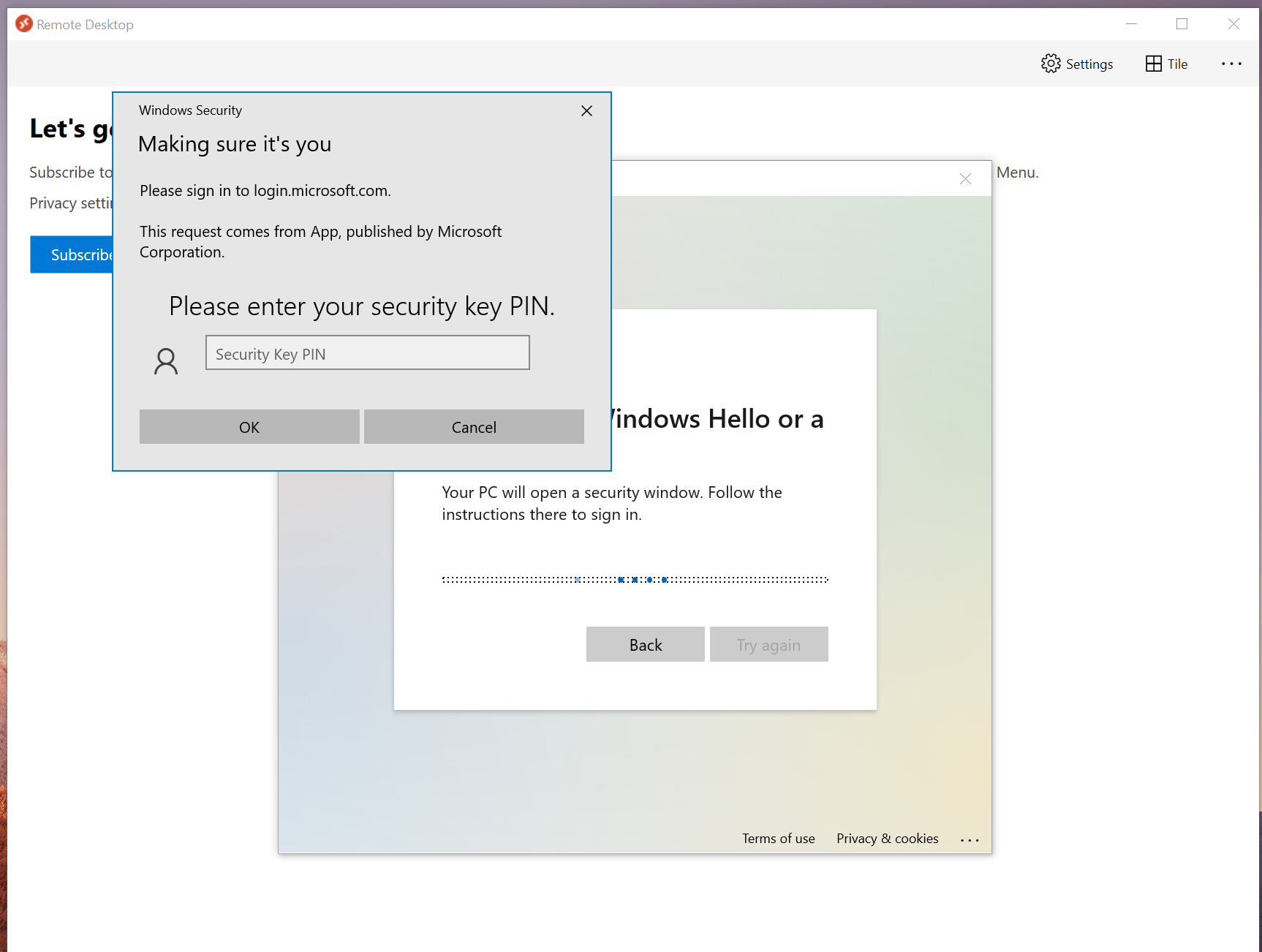
Now, type in the PIN that we set up earlier on for our key
Touch the key
And we are in!

The same process applies when accessing WVD via HTML5
Thanks!